VEED.io AI Video Editing: Tools & Core Learnings Guide
A comprehensive breakdown of VEED.io's primary AI editing features—including Silence Removal, Clean Audio, Eye Contact correction, Auto Subtitles, and Audio Translation—complete with practical workflows and key creator takeaways.
VEED.io AI Video Editing: Tools & Core Learnings Guide
These website-ready notes highlight the primary AI-powered tools in VEED.io and outline the key practical learnings for streamlining modern video production.
🛠️ Standout AI Tools in VEED.io
1. Silence Removal & Magic Cut
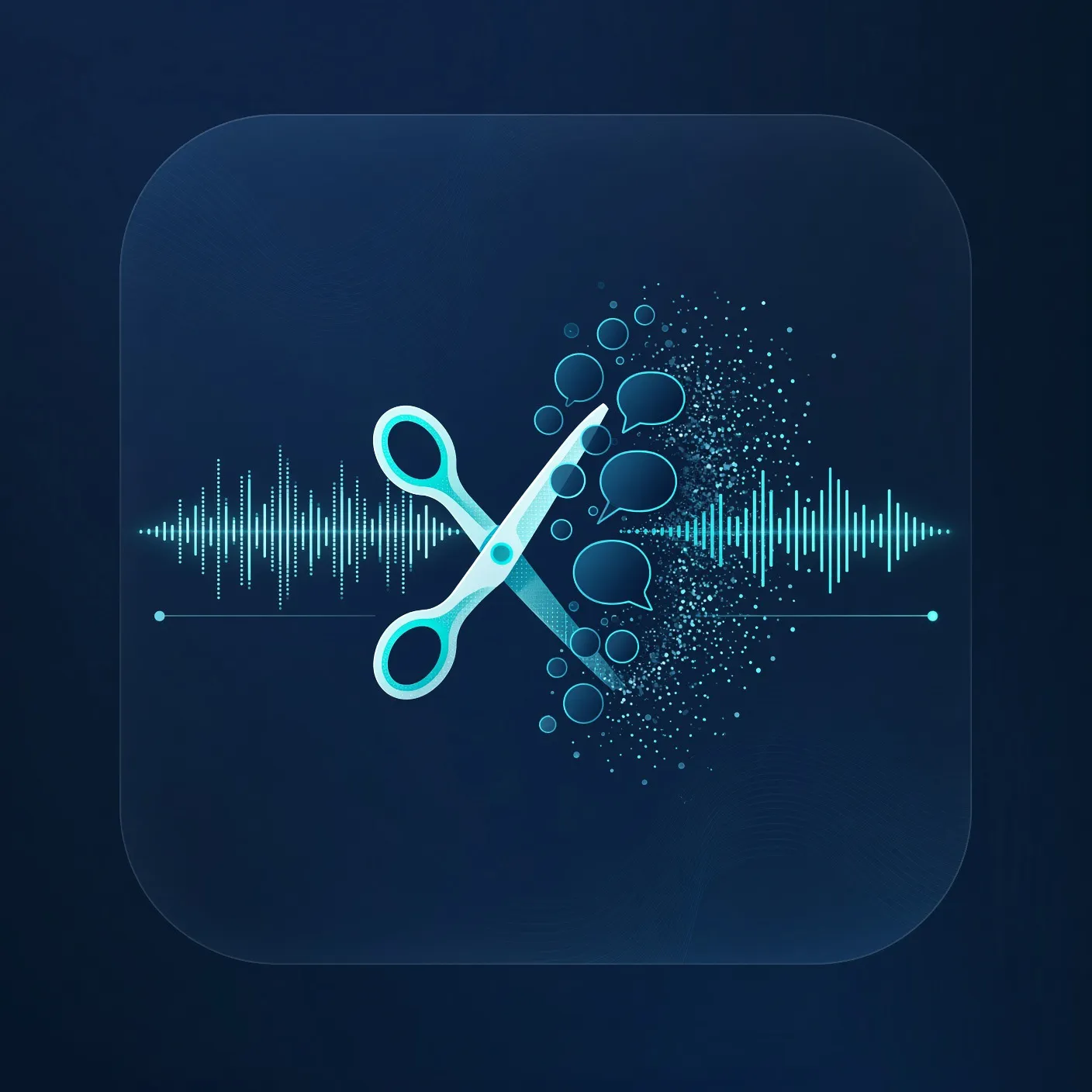
What it does: Automatically scans timeline audio to detect pauses, hesitations, dead air, and unwanted takes, trimming them out in a single click (VEED vs CapCut Guide).
How to use: Select your video track on the timeline, choose Magic Cut / Remove Silences, and adjust the pause threshold sensitivity if desired.
Why it matters: Eliminates the tedious task of manually splitting and ripple-deleting dead space, cutting initial rough-cut assembly time by over 50%.
2. Clean Audio (Dolby-Powered Noise Removal)
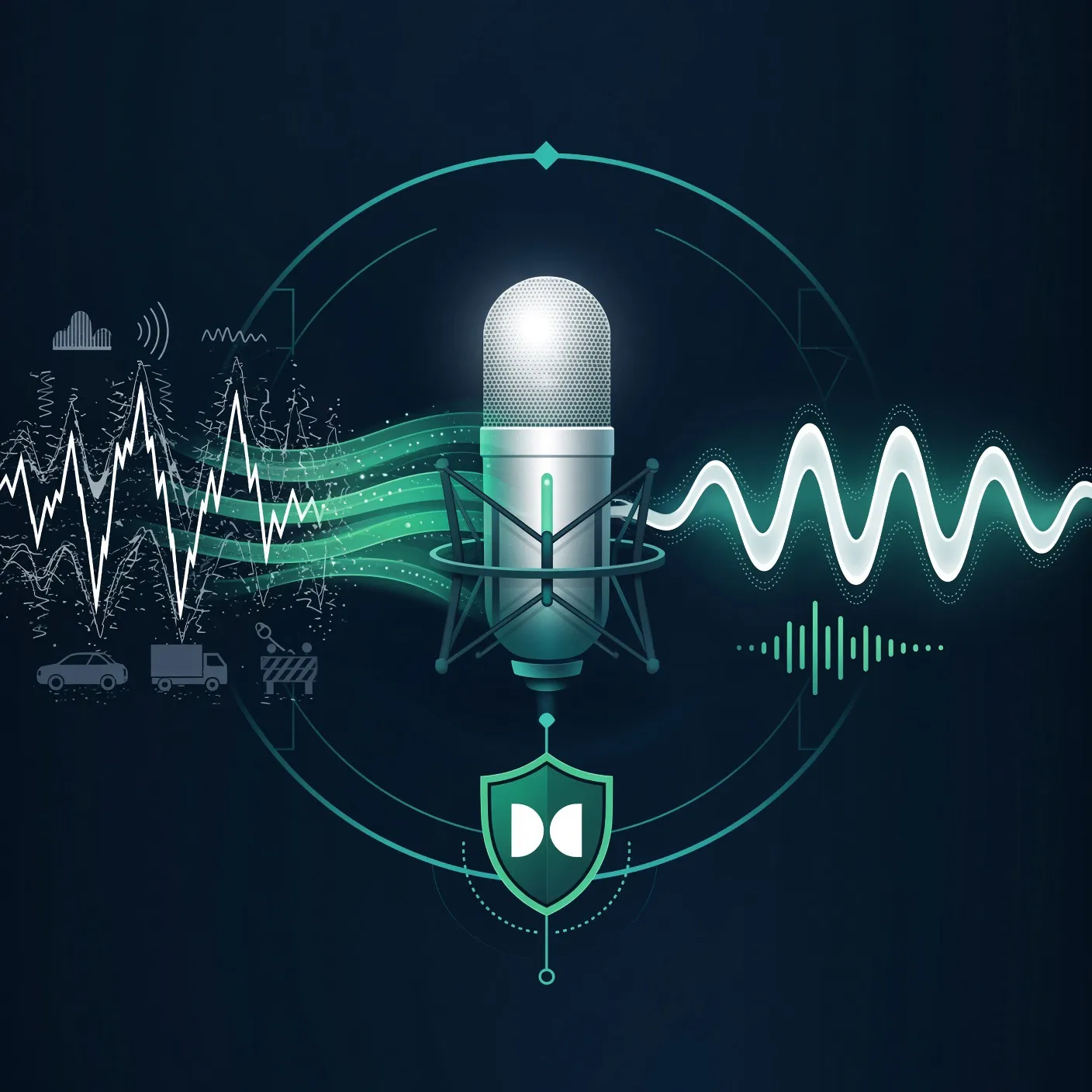
What it does: Utilizes Dolby AI algorithms to isolate the speaker's vocal track and remove ambient room echo, fan whirrs, air conditioning hums, traffic noise, and microphone hiss (VEED Noise Removal).
How to use: Click the audio or video track, open the Audio settings in the left-hand panel, and toggle on Clean Audio.
Why it matters: Rescues dialogue recorded in imperfect acoustic environments without requiring complex parametric EQ or multi-band noise gates.
3. Eye Contact Correction

What it does: Uses computer vision to subtly adjust the subject’s pupil and gaze direction so they appear to look directly into the camera lens, even if they were reading from a script, notes, or an off-center teleprompter (VEED AI Features).
How to use: Select the video track containing a front-facing speaker, navigate to the AI tools section, and enable Eye Contact.
Why it matters: Boosts audience connection and retention in talking-head videos, product walkthroughs, and tutorials by eliminating the distracting "reading" gaze.
4. Audio Translation & Voice Dubbing

What it does: Transcribes spoken dialogue and translates it into 50+ languages, generating a synchronized, natural-sounding AI voiceover while retaining the original pacing (VEED AI Production).
How to use: Go to Subtitles or Audio, select Translate, pick your target languages, and enable AI voice dubbing.
Why it matters: Allows individual creators and businesses to localize training material, marketing campaigns, and tutorials without hiring multilingual voice actors or translators.
5. Auto Captions & Animated Subtitles
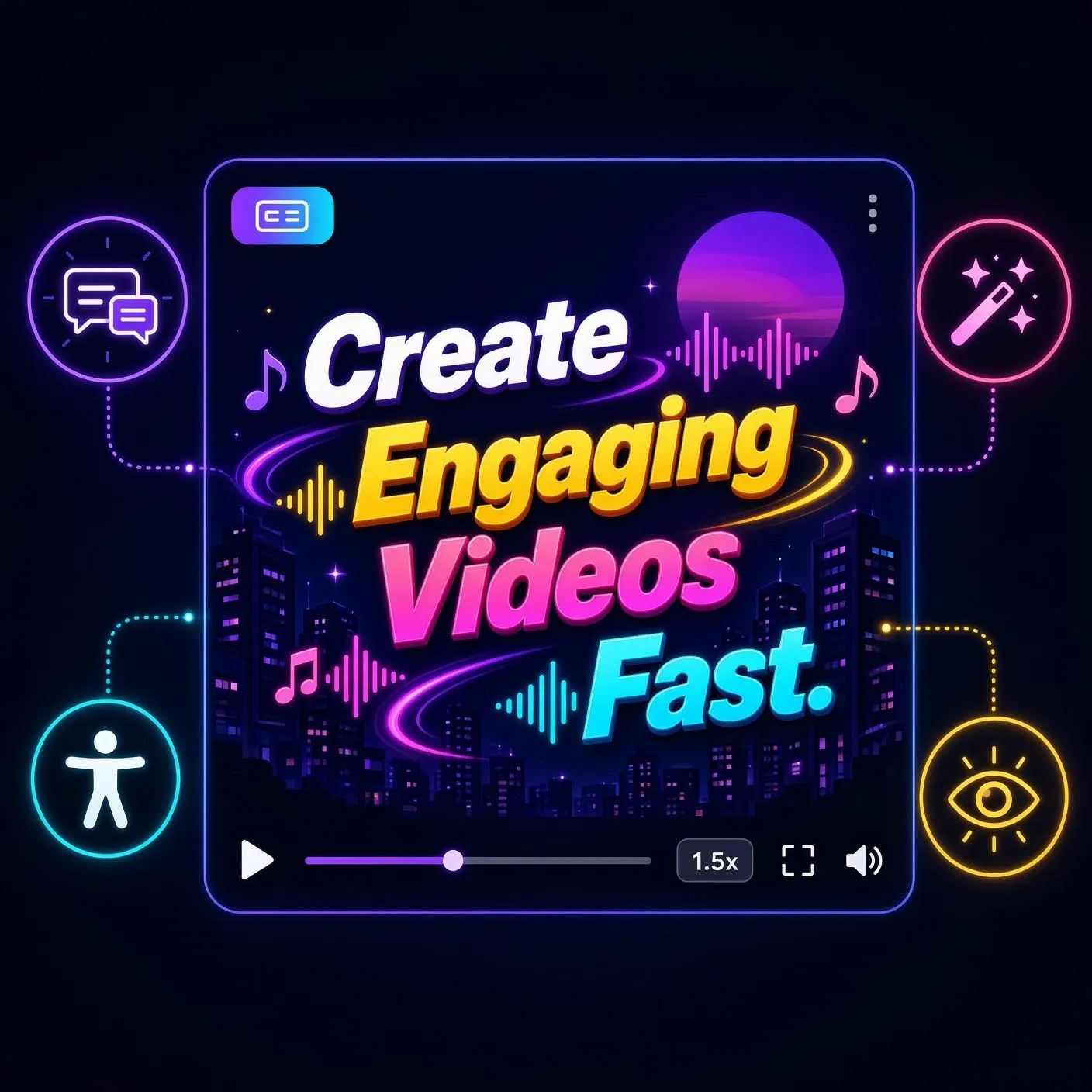
What it does: Transcribes dialogue with high accuracy across 50+ languages, auto-generating synchronized on-screen captions with customizable styling, karaoke animations, and keyword highlighting (VEED Tutorial).
How to use: Click the Subtitles tab, select Auto Subtitle, choose the source language, and select an animated preset style (e.g., TikTok, YouTube Shorts, or corporate lower-thirds).
Why it matters: Up to 80% of social media feeds are browsed without sound. Captions ensure accessibility and immediate hook retention. Transcripts can also be exported as
.SRTor.VTTfiles.
6. Additional Essential AI Tools
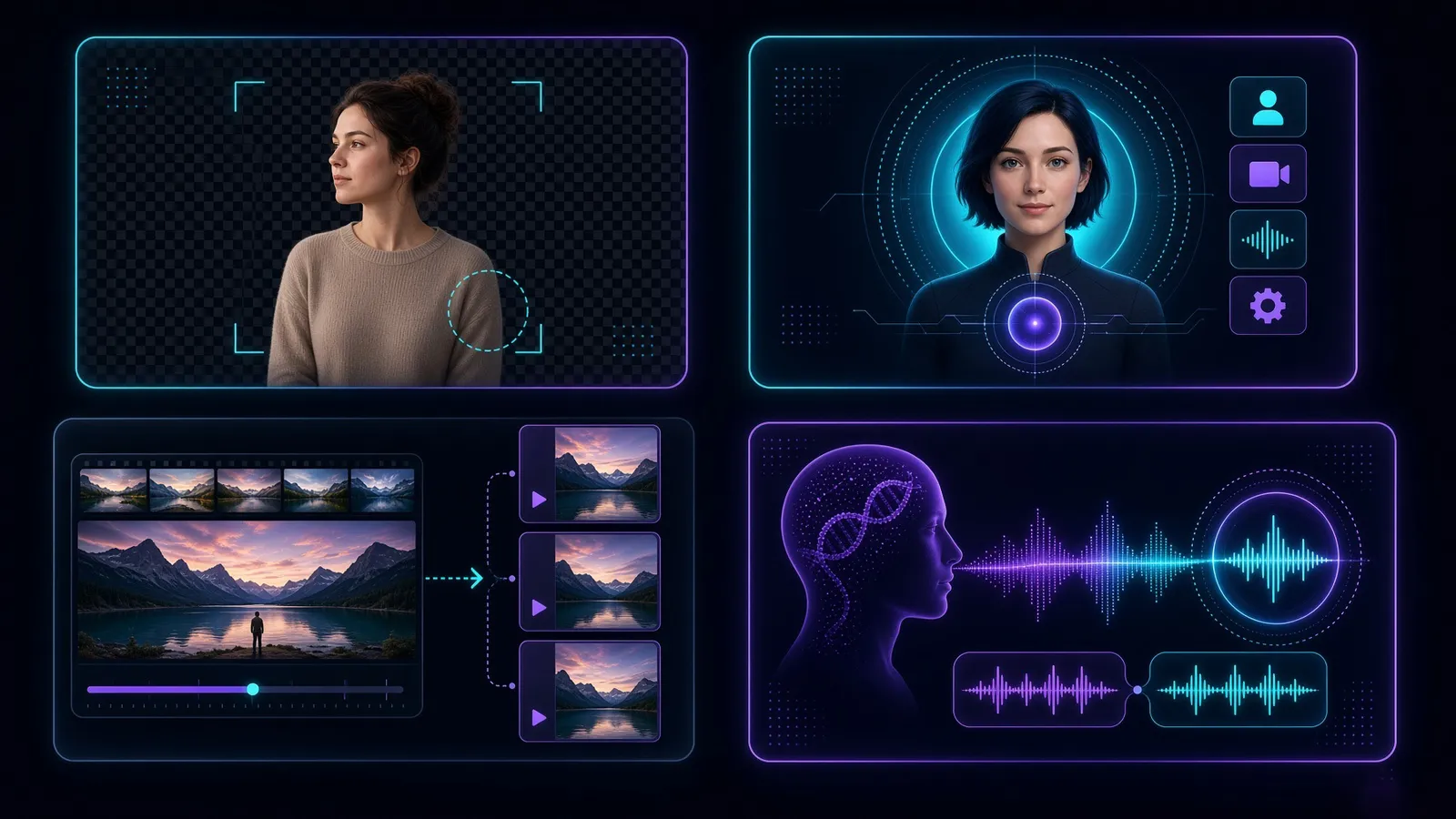
AI Background Removal: Removes video backgrounds with one click—no physical green screen required.
AI Avatars & Text-to-Speech: Provides 90+ realistic digital avatars and expressive synthetic voices to generate talking-head videos directly from a typed script.
Auto-Clips (Smart Repurposing): Identifies engaging highlights from long-form videos (podcasts, webinars, interviews) and generates bite-sized, vertically formatted clips with captions ready for TikTok, Shorts, and Reels.
AI Voice Cloning: Clones your voice profile to generate consistent voiceovers and fix minor spoken errors without having to re-record with a microphone.
💡 Practical Learnings & Best Practices
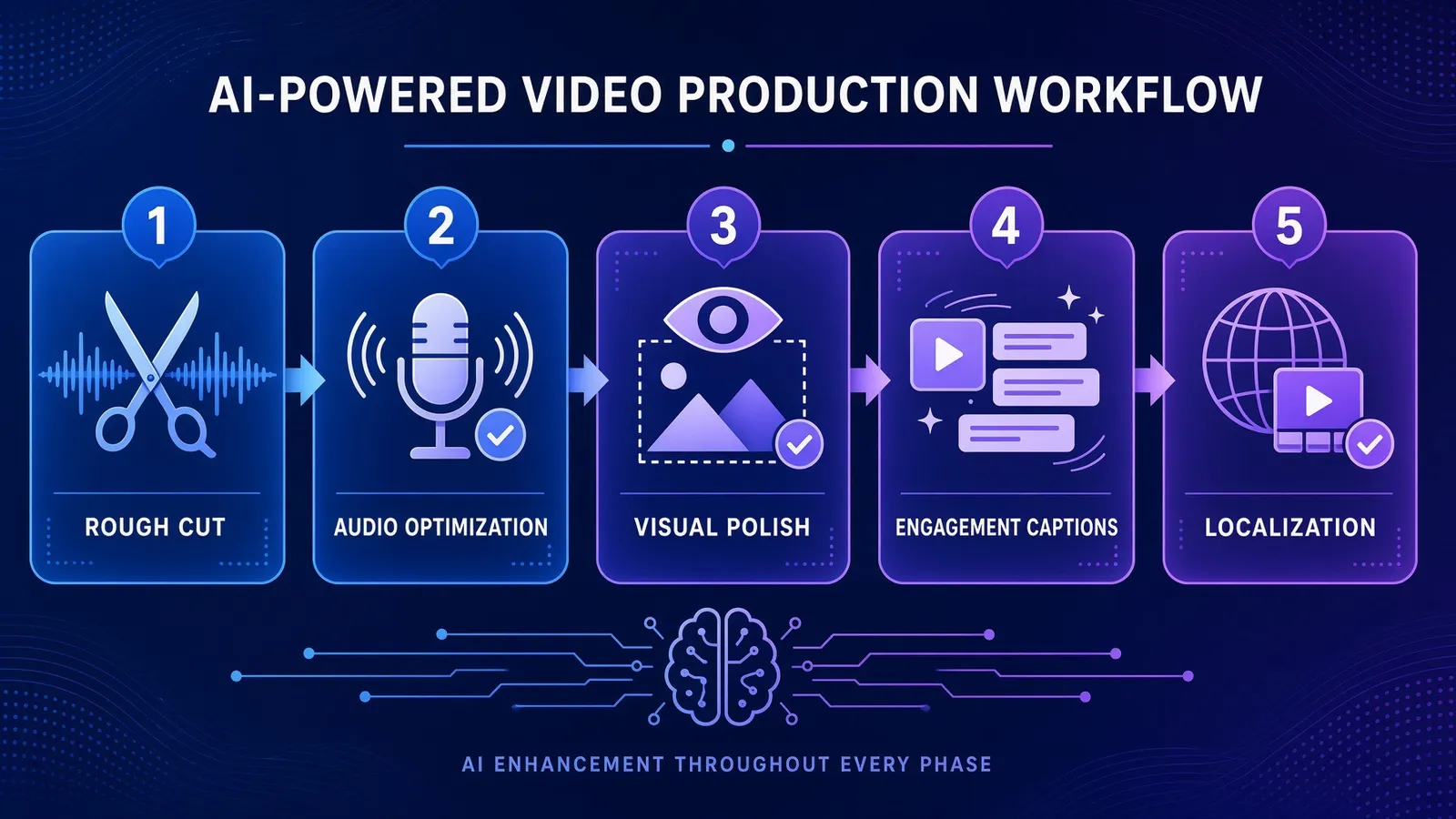
Workflow Phase | Recommended AI Tool | Pro Tip / Key Takeaway |
1. Ingest & Rough Cut | Silence Removal / Magic Cut | Run silence removal before adding music or manual cuts to establish an uncluttered talking baseline. |
2. Audio Optimization | Clean Audio | Apply Clean Audio before balancing background music tracks to prevent ducking artifacts. |
3. Visual Polish | Eye Contact & Background Removal | Position your eyes reasonably close to the camera axis; AI correction looks most natural within a 15–20 degree deviation. |
4. Engagement & Retention | Auto Subtitles & Styling | Choose bold, high-contrast captions with 1–3 words per line for mobile viewing; review the generated text once for proper nouns or brand names. |
5. Localization & Repurposing | Audio Translate & Auto-Clips | Repurpose a single 16:9 landscape master into localized 9:16 vertical shorts to multiply reach across platforms with minimal overhead. |
📌 Suggested Summary Takeaways
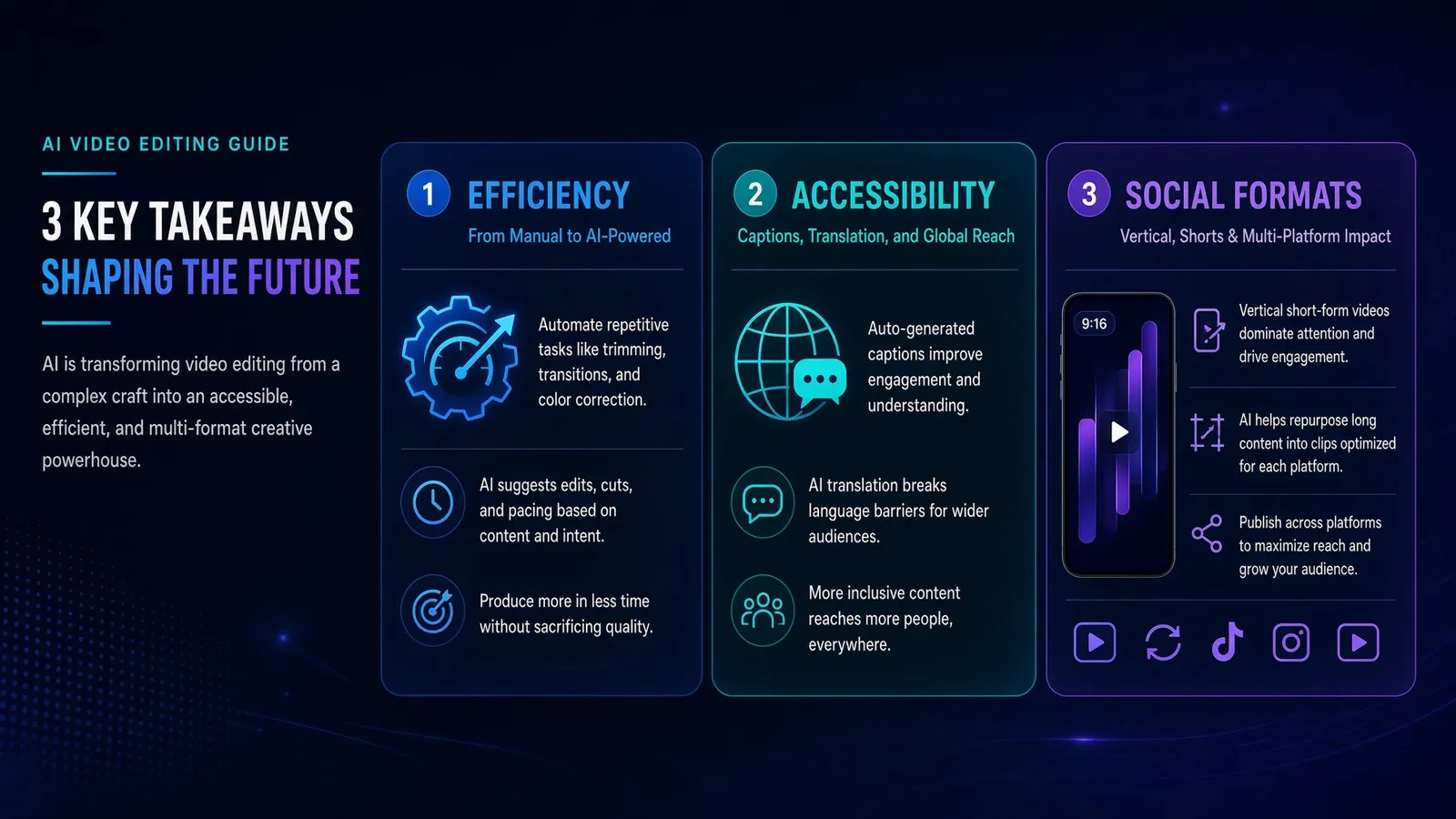
Efficiency Over Complexity: VEED's AI toolset shifts the video editing curve from manual micro-adjustments (cutting pauses, framing eyes, cleaning noise) to strategic curation and storytelling.
Accessibility by Default: Automated subtitling and voice translation allow solo creators to produce professional, accessible content for international audiences on a standard browser.
Optimized for Social Formats: Features like auto-clipping, aspect ratio conversion, and dynamic text presets reduce cross-platform adaptation time from hours to minutes.
You might also like
Comments
Log in to leave a comment.